Up and running in minutes
IPTV Installation & Setup Guide
Setting up LifetimeIPTV Now is quick and works almost the same on every device — install an app, enter the login we send you, and start streaming. Below you’ll find a quick start plus step-by-step guides for Firestick, Smart TV, Android, iOS and MAG.
Need a hand? WhatsApp us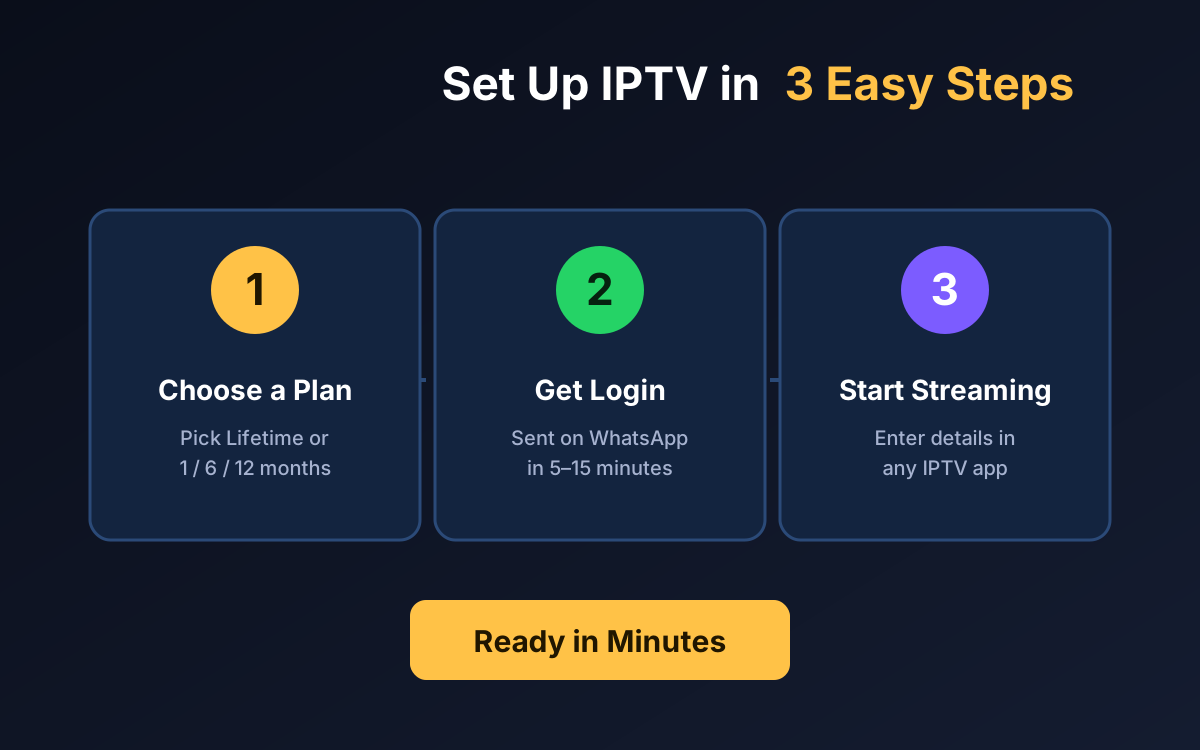
Before you start
What You’ll Need
An active plan
Any LifetimeIPTV Now plan — we email/WhatsApp your Xtream Codes or M3U login after checkout.
An IPTV app
A free player like IPTV Smarters Pro, TiviMate, BOB Player or Smart IPTV on your device.
Internet
A stable 15–25 Mbps connection for smooth Full HD streaming (faster for multiple devices).
Quick start
Set Up IPTV in 4 Steps
Order & receive your login
Choose a plan and check out. We send your Xtream Codes / M3U login on WhatsApp within 5–15 minutes.
Install an IPTV app
On your device, install a player such as IPTV Smarters Pro, TiviMate, BOB Player or Smart IPTV.
Enter your details
Open the app, choose “Xtream Codes” or “M3U URL”, and paste in the username, password and server URL we sent.
Start watching
Your channels and VOD load automatically. Rescan any time to pull the latest line-up.
Step by step
How to Install IPTV on Your Device
Pick your device below for exact setup steps.
Amazon Firestick & Fire TV
- From the Fire TV home screen, search for and install “IPTV Smarters Pro” (or use the Downloader app to sideload BOB Player).
- Open the app and choose “Login with Xtream Codes API”.
- Enter the username, password and server URL we send you on WhatsApp.
- Your live TV, movies and series load automatically — press OK on a channel to start streaming.
Samsung & LG Smart TV
- Open your TV’s app store and install “Smart IPTV (SIPTV)” or “IBO Player”.
- Open the app and note the MAC address shown on screen.
- Send us that MAC address with your M3U link on WhatsApp — we activate the device for you.
- Reopen the app and your full channel list appears, ready to watch.
Android Phone, Tablet & TV Box
- Install “IPTV Smarters Pro” or “TiviMate” from the Google Play Store.
- Choose “Add Playlist” → “Xtream Codes API” (or “M3U URL”).
- Enter the login details we provide and save.
- Browse the categories to watch live TV, sports and on-demand movies.
iPhone, iPad & Apple TV
- Install “IPTV Smarters” or another M3U/Xtream player from the App Store.
- Add a new playlist and select the Xtream Codes or M3U option.
- Paste in the username, password and server URL we send.
- Your channels and VOD library load instantly.
MAG Box
- On the MAG box, go to Settings → System Settings → Servers → Portals.
- Enter the portal URL we send you and save.
- Send us the MAG MAC address on WhatsApp so we can whitelist it.
- Restart the box (Settings → Restart Portal) and your channels load.
Recommended apps
Best IPTV Apps to Use
Any M3U or Xtream Codes player works. These are the most reliable, free options:
Fix common issues
IPTV Troubleshooting
Channels buffering or freezing
Use 5GHz Wi-Fi or Ethernet, restart your router and app, and pause other large downloads. If it persists, we can move you to a closer, less busy server.
Login not working
Double-check the username, password and server URL for typos and trailing spaces. Copy-paste them exactly as sent. Still stuck? We’ll re-issue your details.
No channels or empty categories
Force-close and reopen the app, or refresh/rescan the playlist. Some apps cache the old list until you reload it.
EPG (TV guide) missing
Enable EPG in your app’s settings and allow a minute for it to download. In TiviMate and Smarters it updates automatically once turned on.
Only have an M3U link but your app asks for Xtream Codes? Use our free M3U to Xtream Codes converter.
Still stuck? Our team fixes most setups in a couple of minutes — message us on WhatsApp
Ready to get your login?
Grab a plan and we’ll send your details within minutes.
IPTV Installation — Frequently Asked Questions
How do I install IPTV on a Firestick?
Install a player such as IPTV Smarters or BOB Player from the Amazon Appstore (or by sideloading with the Downloader app), open it, enter the Xtream Codes or M3U login we send you, and your channels load automatically.
How do I set up IPTV on a Samsung or LG Smart TV?
Install Smart IPTV (SIPTV) or IBO Player from your TV’s app store, note the MAC address it shows, and send it to us on WhatsApp with your M3U link — we activate it and your channels appear.
How do I install IPTV on Android or an Android TV box?
Download IPTV Smarters Pro or TiviMate from the Google Play Store, choose “Login with Xtream Codes API”, enter the username, password and server URL we send, and load your playlist.
How do I set up IPTV on iPhone, iPad or Apple TV?
Install IPTV Smarters or a compatible M3U player from the App Store, add your Xtream Codes or M3U details, and your channels and VOD load instantly.
Do I need a VPN?
A VPN is optional. The service works without one, but some users prefer a VPN for extra privacy on their home connection.
Which app should I use?
Popular choices are IPTV Smarters Pro and TiviMate on Android/Firestick, and Smart IPTV or IBO Player on Smart TVs. Any M3U or Xtream Codes compatible app will work.
What internet speed do I need?
A stable 15–25 Mbps connection is comfortable for Full HD streaming. Faster is better if several devices are streaming at once.
My channels are buffering — how do I fix it?
Restart your app and router, connect over 5GHz Wi-Fi or Ethernet where possible, and close other heavy downloads. If it continues, message us on WhatsApp and we can switch you to a closer server.